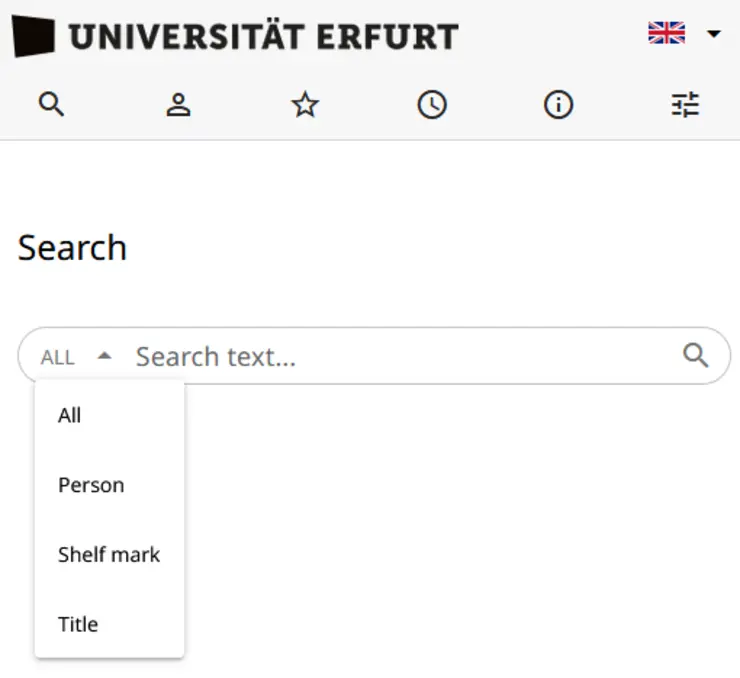
The previous ‘Search area’ filter will be moved and offered as a separate field in the search bar. The default setting is ‘Local’. “Local” refers to the library holdings of the University Library/Faculty Library, including articles from local printed and electronic journals as well as open access. The ‘Global’ setting refers to the holdings of the library network or the complete K10Plus-Zentral index.
The view for small displays (smartphones) has been improved, as has usability with special settings on a device for accessibility.
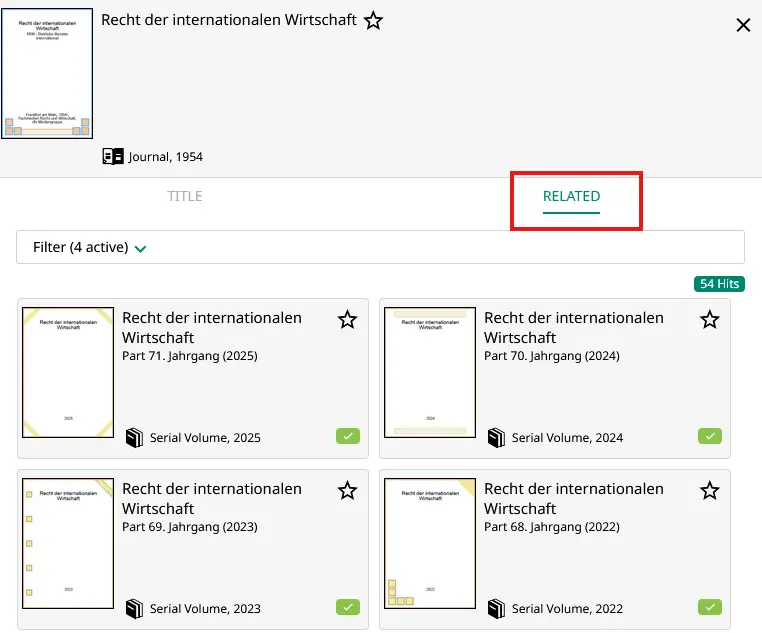
Improved and more complete display of provenance, keyword chains and in the ‘Related’ tab.
Since December 2025
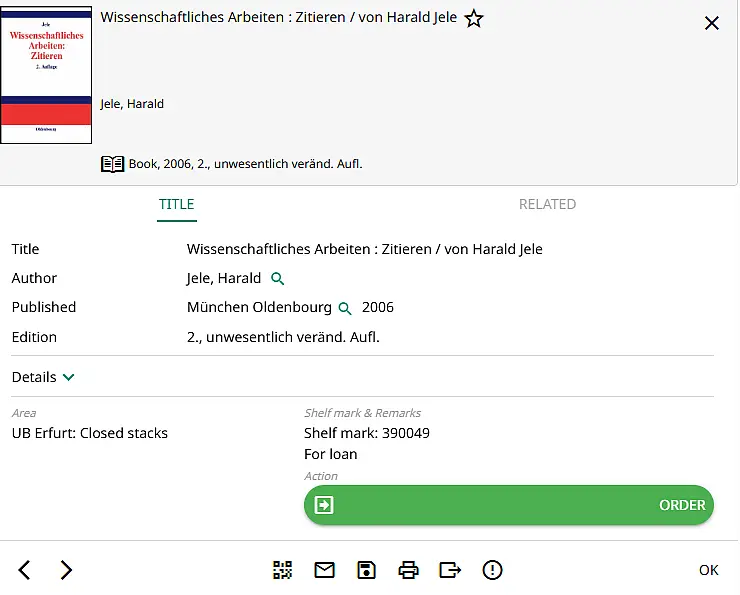
New "Save" icon in the full display of a hit: download the bibliographic data with location and signature as a PDF
"Print" icon in the full display of a hit: a PDF is created for printing
Favourites: entire watch list can be processed further (mail, save, print and export)
Classification field (details in the bibliographic description): for RVK information there is a link that leads directly to the specified notation in the RVK Online
Introduction
Discovery is the University of Erfurt's search portal for comprehensive literature research.
Discovery systems are modern search engines in libraries. Under one search interface a library’s stock of literature and other media, articles and full texts from licensed databases and journal portals as well as free electronic texts can be found.
A discovery system is as easy and intuitive to use as Google and literally promotes one thing above all else: the discovery of knowledge and information.
"Discovery" is:
easy access to printed and electronic resources
through responsive web design ideal for mobile devices such as tablets and smartphones
with integrated user account management
The basic database for the Discovery system is the K10plus Central. This index contains holdings of all libraries of the Common Library Network (GBV) and the Southwest German Library Network (SWB). In addition, it currently contains millions of articles and million electronic resources - in total, over 335 million data records.
We look forward to your feedback! Write an e-mail or use our online form.
Search space
The so-called local search space is preset for the standard search. This contains
the holdings of the Erfurt University Library and the Gotha Research Library including electronic media and Open Access
Proof of and access to numerous articles from locally available journals, articles from electronic journals and e-books accessible in full text (see below for details).
In the extended search area you can search the complete K10Plus-Zentral (the basic database of the discovery system). In addition to the holdings of the local search room, it contains the holdings of other libraries and a large number of additional articles. For holdings from the Joint Library Network, the link to the GVK document delivery services catalogue is provided.
Data pool for standard searches in the local search area:
Holdings of the Erfurt University Library and the Gotha Research Library, including electronic media and Open Access
Articles from the Online Contents (OLC) database with ownership records of the library
Digital objects and bibliographic references from the national licences
articles and journals from the Directory of Open Access Journals (DOAJ)
articles and journals from JSTOR
Articles from electronic journals published by De Gruyter, Elsevier, Wiley and Springer
Articles from OpenEdition
Data pool for searches in the extended search area: additionally
Records of the holdings of all libraries in the Joint Library Network (Gemeinsamer Verbundkatalog GVK)
Records of the Southwest German Library Network (SWB Union Catalogue)
Other collections, e.g. ResearchSquare, Preprints.org
Search terms and search fields
Search terms Enter one or more terms in the search slot. The "Autocomplete" function supports you in selecting the search terms.
Narrowing down the search result Period, type, format By means of a slider or by manually entering the desired years, the result can be narrowed down to a selected period. By activating the desired checkboxes, the search result can be narrowed down to a specific publication type (e.g. electronic) and to selected media formats (e.g. book).
Search queries and search result Confirm search queries by clicking the search button. The entered terms are searched simultaneously in all fields of the title description (person, title keyword, keyword etc.). By default, the search result is sorted by relevance ranking, the highest possible match of the search query with the available data. It is possible to change the sorting by year of publication.
Access to Licensed Electronic Resources For a variety of electronic resources, the library offers access to the electronic full text. Follow the links provided. Access to licensed electronic resources (e-books, e-journals, e-articles) from outside is possiblefor members of the University of Erfurt, especially for students and employees via Shibboleth or VPN.
Placeholder ?or * ? or * can be placed anywhere in the search term or at the end of the search term. ? replaces exactly one character, * for a any number of characters.
Example: - Publi?ation finds publication and publication - W??mar finds Weimar, Wismar etc. - Mühl* finds Mühle, Mühlhausen, Mühlhäuser
Person search Preferably, when searching for a specific person, enter the name in quotation marks. Example: "Gerd Röpke".
Original written search If titles are available in original written form, then you can search for them in this way. Example: История текста и биография А. П. Платонова
Phonetic search Phonetic search can also be used to find similar terms. This is helpful when the correct spelling of a name or term is unknown. Example: Tollsdeu finds Tolstoy, Tolstoj, Tolstoy etc.
Narrow search result
Use additional filters to narrow down your search results for large numbers of hits:
Period: Restrict the search result to specific publication years
Type: Restrict to printed or electronic media
Formats: Selection of media types (for example: book, article, journals)
Languages: Restricting the search result to selected languages
Keywords: Selection of keywords to which the search result should be limited
Locations: Selection of a location within the respective institution
Content types: Selection of the content media type (e.g. dictionary, collection of articles)
By selecting one or more checkboxes within a filter, the search result can be narrowed down and triggered by clicking on the "Activate" button. The "Reset" button cancels the selection and the search is repeated without filtering.
Submit search and hit list
Confirm search queries by clicking on the search button. The search results are sorted by relevance by default, i.e. according to the closest possible match between the search query and the available data. It is possible to change the sorting by year of publication.
The results overview provides you with brief information on the individual titles, including the cover.
The coloured symbols indicate availability:
green tick: the title is available in the library and you have immediate access
orange question mark: the title is in the library but is not immediately available, e.g. because it is currently on loan
Make a note of your favourites (click on the star) and create a favourites list. The complete watch list can be further processed (mailing, saving, printing and exporting). In the settings, you can specify whether you want to save your favourites permanently on your device.
Scroll through your favourites list using the arrow keys on the keyboard or click to select an individual hit - you will be taken to the full display of the hit.
Hit display
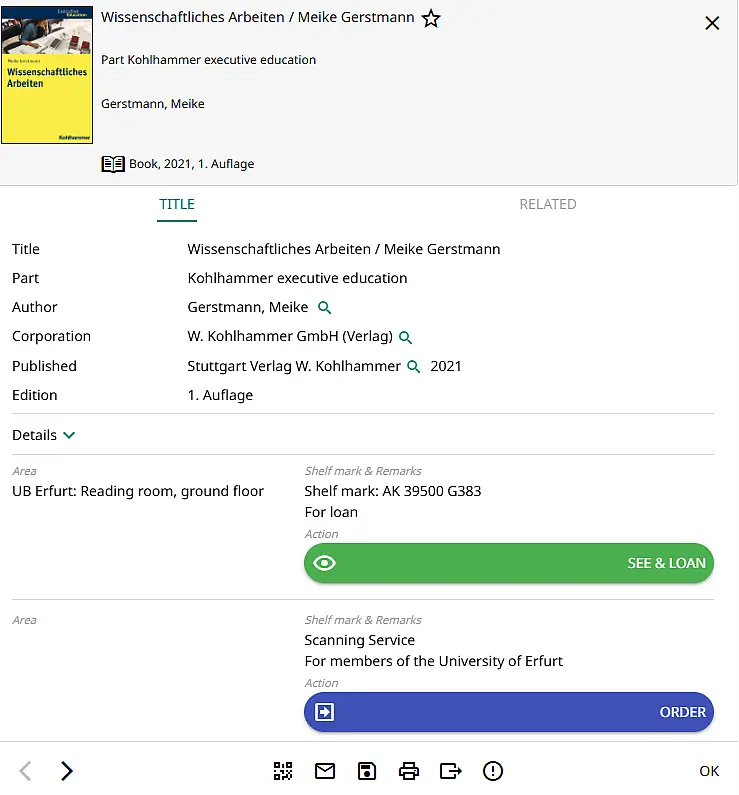
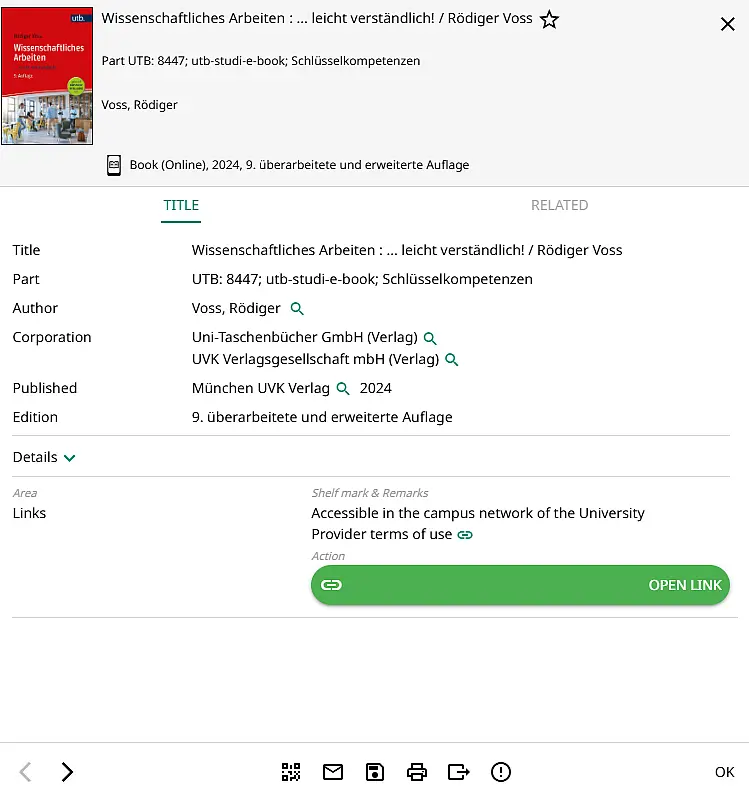
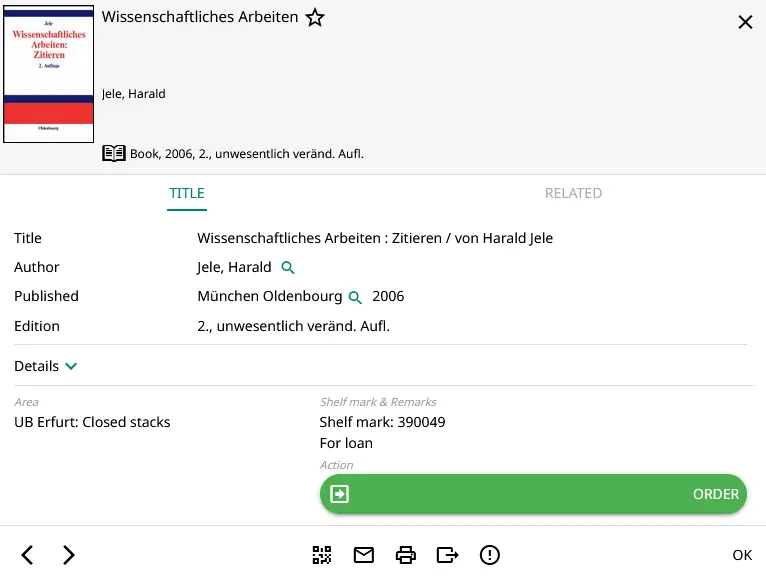
The"Title" tab shows all available bibliographic information on the respective publication.
Further information such as language, summaries, tables of contents, keywords, classification, source and ID are listed under"Details".
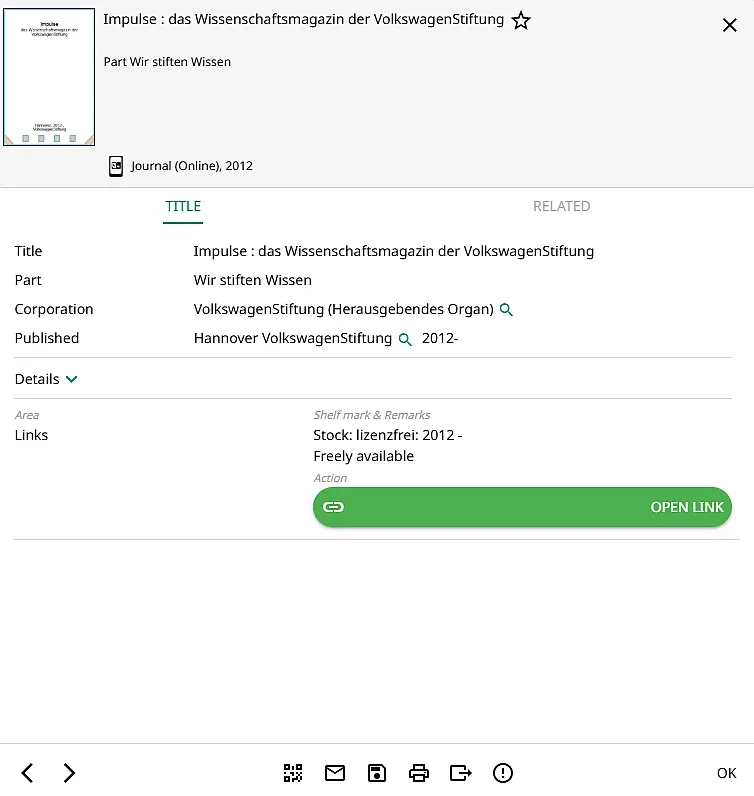
Click on the "magnifying glass" to trigger a new search with this term. Links lead, for example, to a full text, a review or a table of contents.
The library offers access to the electronic full text for a large number of electronic resources. Follow the links provided. Access to licensed electronic resources (e-books, e-journals, e-articles) from outside is possiblefor members of the University of Erfurt, in particular for students and employees via Shibboleth or VPN.
Information on the copy in the library can be found in the "Details" section:
Location, signature and the respective availability, with the option to order or reserve
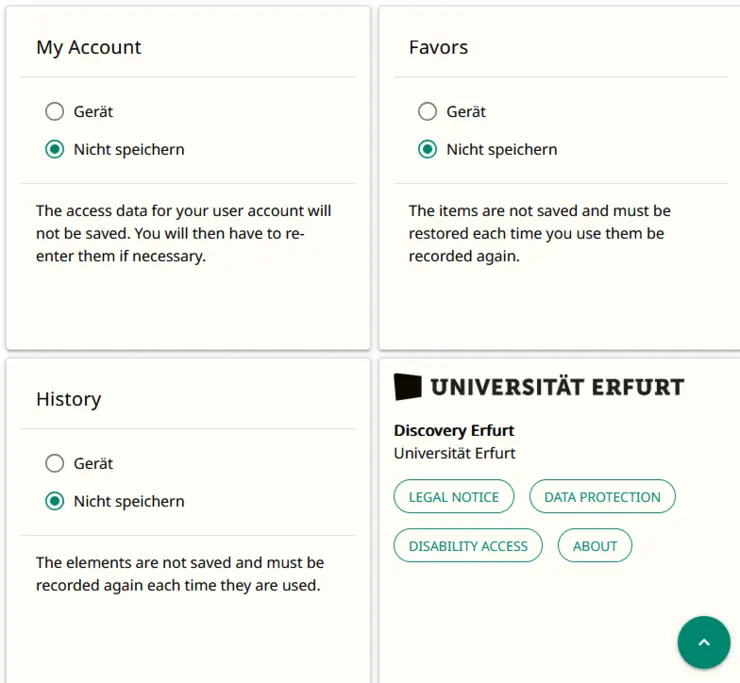
Settings tab In the Settings tab, you can specify whether you want to save various functions on your device. These include: your user account login details, your favourites list data records and your search history.
Additional settings Select language: German or English by clicking on the respective flag icon.
Expert search
Other internal search keys
Other internal search keys
author author, e. g. author("strittmatter, peter")
corporation corporation, e.g. koerper(Leibniz-Archiv)
doi DOI, Digital Object Identifier, z.B. doi(10.4017*)
format format, publication form, e.g. format(Journal)
genre genre, e.g. genre(essay collection)
id / ppn PPN, internal record number
isn ISBN or ISSN, e.g. isn(26294982)
language / sprache language, z.B. language(English). Großer Anfangsbuchstabe und in englischer Form zwingend.
prov provenance, e.g. prov(Erfurt public library)
publisher publisher, e.g. publisher(Herder)
series series, e.g. series(reclam)
signature shelf-mark, e.g. signature(DW 4000 S918). Search terms are case sensitive.
location location, e.g. location(LBS). Search terms are case sensitive.
subject keyword, e.g. subject(Business Psychology)
topic classification system and notation, e.B. topic(rvk DP 3100)
The search keys can be used in German and English.
It is possible to combine search keys, e.g. format(Journal) isn(26294982).
Truncation characters such as * can be used, e.g. signature(DP 3100*).
Several search terms can be searched for simultaneously, separated by ",". Hits with one term as well as with the other will be found, e.g. location(MAG, A1MAG) or author(meier, müller).
If there is a space between the search terms, hits are found in which all terms occur, e.g. author(schiller goethe).
Note: Some collections can be found in the local (default) search space: NL, JSTOR, OLC and GVK - all others only in the advanced search space "Advanced search in all libraries" .





![[Translate to English:] facebook icon](/fileadmin/SocialMediaIcons/iconfinder_06-facebook_white.svg)

![[Translate to English:] instagram icon](/fileadmin/SocialMediaIcons/iconfinder_38-instagram_white.svg)
![[Translate to English:] YouTube icon](/fileadmin/SocialMediaIcons/iconfinder_18-youtube_white.svg)
![[Translate to English:] xing icon](/fileadmin/SocialMediaIcons/iconfinder_xing_white.svg)
