Spread over all floors, the library has computer workstations for academic work, particularly in the computer room, the group study rooms and some of the carrels.
The terminals can be used differently: with a personal login for students and staff of the University of Erfurt and via an anonymous login (login button “guest”) for guests and external users. The available applications differ depending on the access.
Applications
USB sticks and headphones may be used.
Special feature of monitor workstations:
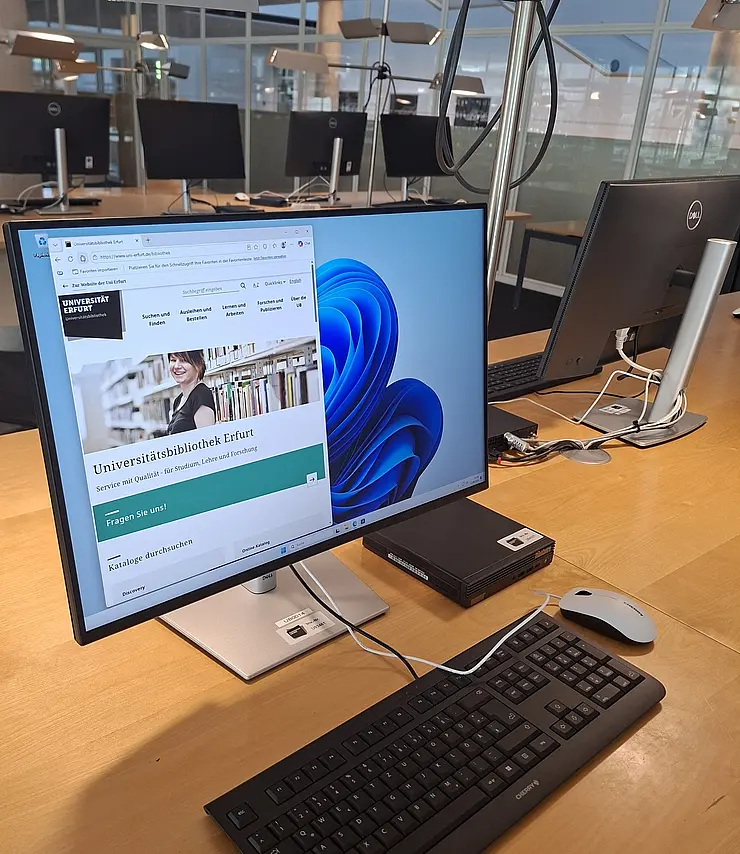
In certain areas, e.g. in the computer room or near the lockers on the 1st and 2nd floors, there are monitor-only workstations equipped with a keyboard and mouse (without a PC), to which you can connect your own laptop via a USB-C cable.
In the library, it ist possible to use your own laptops and other mobile devices (e.g. netbooks, tablet PCs, smartphones, e-book readers). You can use the mains power supply at all workstations fitted with a table socket.
Internet access is provided via Wi-Fi, specifically eduroam, which is available throughout the library, amongst other places. Access is restricted to members of the University of Erfurt and other institutions within the eduroam network.
Full details about Wi-Fi on the university campus, including detailed instructions and usage guidelines, can be found on the University Computer and Media Center (URMZ) website.
At designated areas (marked ‘LAN’) on the ground floor, as well as on the first and second floors, you can also access the internet using your own LAN cable and personal laptop. (See also the ‘News’ item ‘Access the internet with your own cable’)
If you have any questions or encounter any problems whilst using your laptop or mobile device, please contact the University Computer and Media Center (URMZ).
Activation and display
Once connected, the ‘Removable Disk’ drive will appear in the ‘Computer’ section of Windows File Explorer. You can open and manage files here or within the relevant application.
Safe removal
End the session (Start menu / deregistration). Only then should you disconnect the stick from the device.
Please always remove the USB stick using this procedure and do not simply pull it out, as this may result in data loss.
![[Translate to English:] facebook icon](/fileadmin/SocialMediaIcons/iconfinder_06-facebook_white.svg)

![[Translate to English:] instagram icon](/fileadmin/SocialMediaIcons/iconfinder_38-instagram_white.svg)
![[Translate to English:] YouTube icon](/fileadmin/SocialMediaIcons/iconfinder_18-youtube_white.svg)
![[Translate to English:] xing icon](/fileadmin/SocialMediaIcons/iconfinder_xing_white.svg)

University of Erfurt (Campus)
Nordhäuser Str. 63
99089 Erfurt