

Adobe Creative Cloud App
For employees:
To use the Adobe Creative Cloud applications on the PC, the Adobe Creative Cloud app is required as a central application via which Adobe applications such as Acrobat Professional or Photoshop are installed and also updated. For all devices centrally administered by the University Computer and Media Centre (URMZ), the Adobe Creative Cloud App will be distributed automatically from 08.06.2020.
The Adobe Creative Cloud app can be found in the Start menu after distribution.
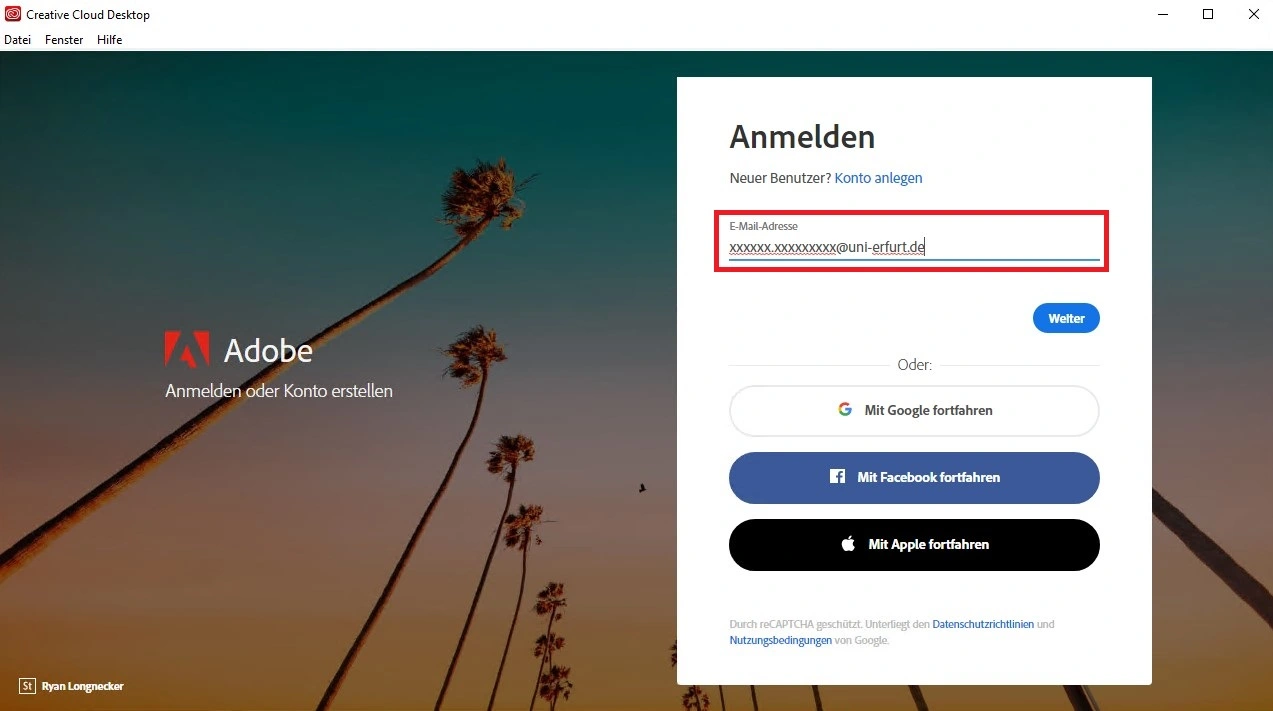
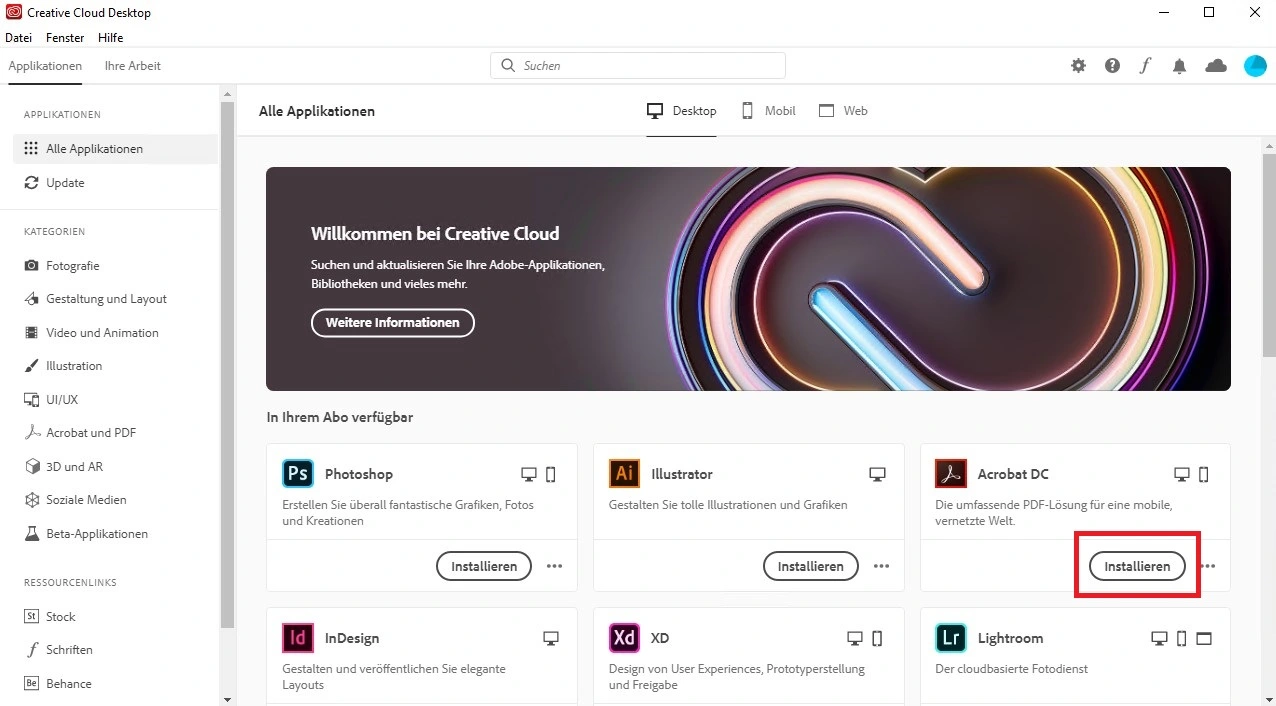
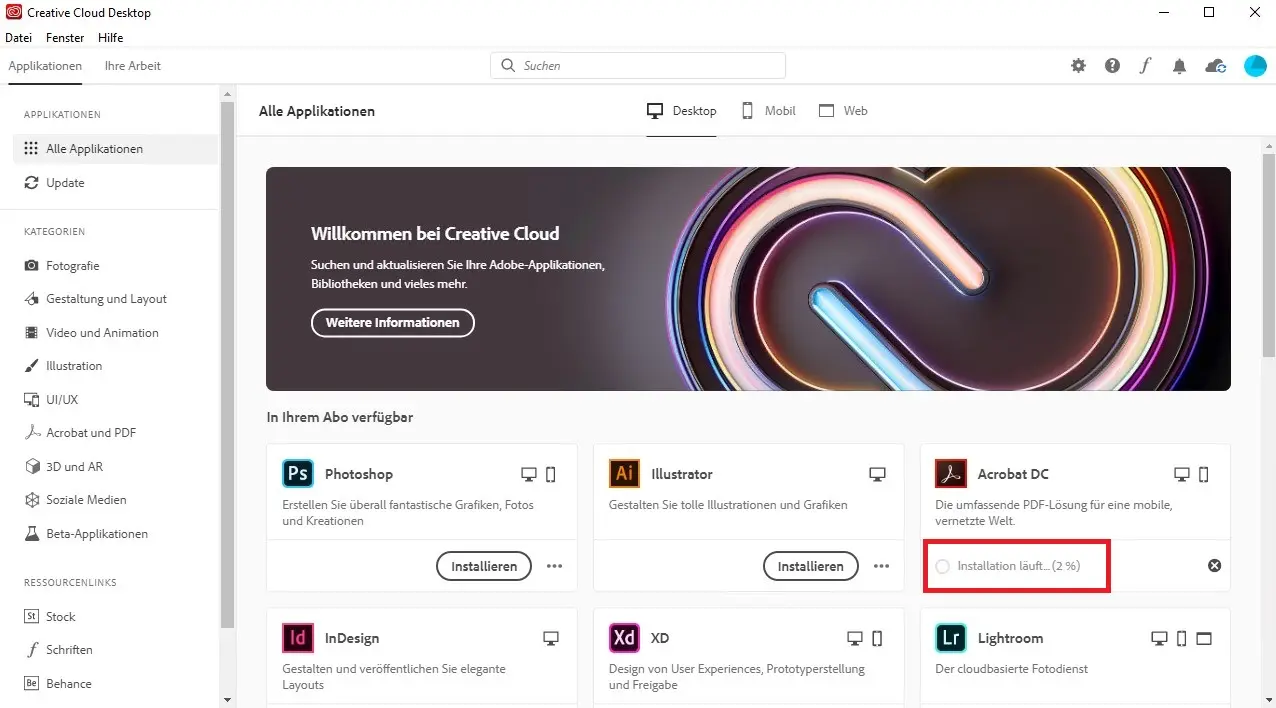
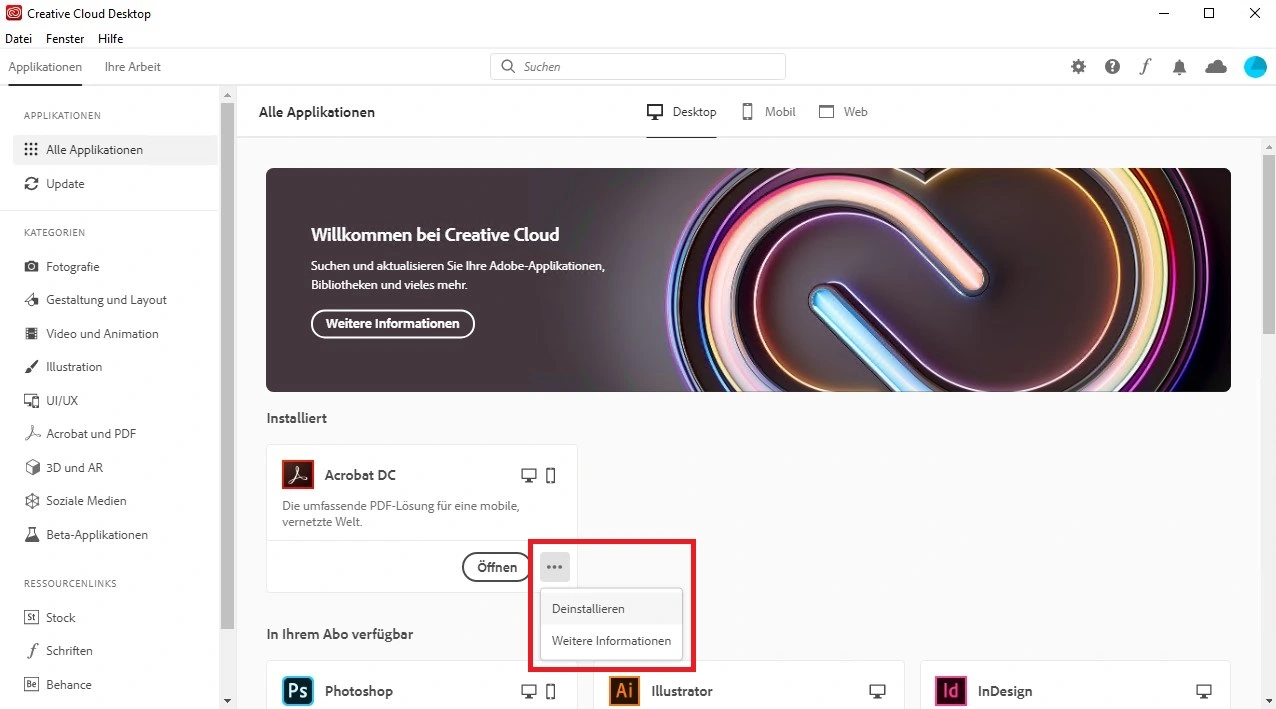
When opening the Adobe Creative Cloud App for the first time, it is necessary to log in with your Adobe Enterprise ID. After registering your myAdobe account via the portal of the Thuringian IT Center (ITZ), this is the university email address (Figure 1). The Adobe Creative Cloud app starts in the "All apps" area, where the required application can be selected and downloaded and installed by clicking "Install" (Figure 2 and 3). If an application is no longer needed, it can be uninstalled in the same way (Figure 4).
The installed applications can be accessed either via the Adobe Creative Cloud app or, as usual, via the Start menu.
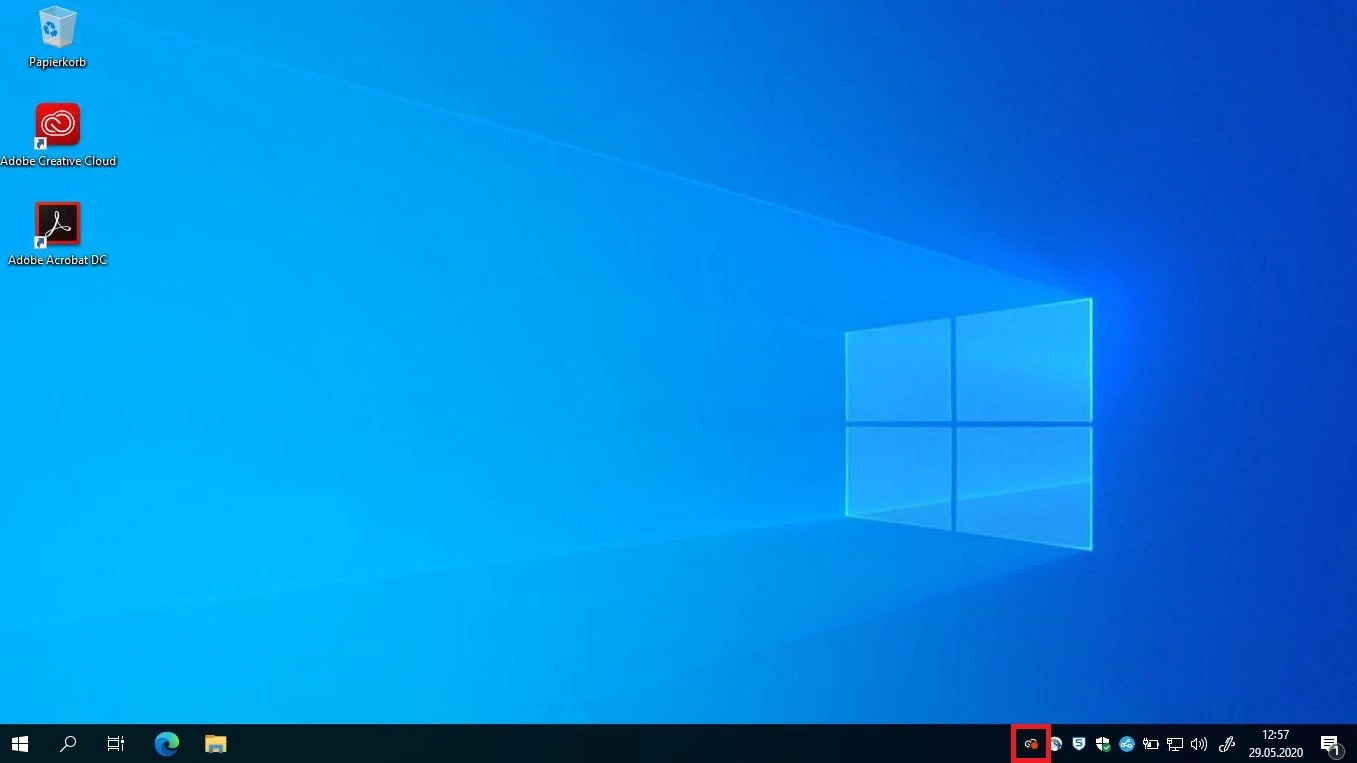
The taskbar icon (bottom right) provides quick access to the Adobe Creative Cloud app at any time. A small red dot indicates completed installations, available updates, etc. (Figure 5).
If updates are available for the installed Creative Cloud apps, they can be quickly and easily brought up to date and secure in the Adobe Creative Cloud app via the "Update" area and a click on "Update all" (Figure 6). As far as possible, the University Computer and Media Centre (URMZ) tries to update the installed apps automatically (weekly).
Please also refer to the Adobe Creative Cloud security information provided by the data protection officers.
For students:
For the use of Adobe products in the pools of the University of Erfurt, a so-called Adobe Enterprise ID is required. You can obtain this by registering once via the Thuringian universities' portal for teaching in PC pools. Simply follow the steps described on the portal. After registration, you will receive an e-mail to your university account containing a link for creating your Adobe ID.
You can then sign in to the Adobe Creative Cloud app to use Adobe products. The installation of further software from the Creative Cloud or private use at home is not possible, but only the use in the pools of the University of Erfurt.

Adobe Acrobat
Adobe is currently transitioning to a new, unified app—a so-called “Unified App”. This app combines the previous free Adobe Reader and the paid Acrobat Pro version into a single application.
The new app is called “Adobe Acrobat (64-bit)” and replaces the previous programs. Normally, it works just like the old Reader—that is, for viewing and reading PDFs. If you have a Pro license, you can also use all the advanced features (e.g., creating or editing PDFs) after signing in with your Adobe account.
Do you already have an Adobe account and are logged in via the Creative Cloud app?
Then the new app will automatically recognize your login—you don’t need to log in again. However, this may take a moment or may not work until after you restart your computer.
Do you see the message “You don’t have access to this feature…”?
Then log in manually in the app:
Menu → Help → Sign In
The Unified App does not support devices with a Shared Device License (currently available only in our KIZ pools (RTP1-4) and ITB). On those devices, users can only access Acrobat via the Adobe login and the corresponding license, or open PDFs in a browser. Microsoft Edge has been using the Adobe PDF engine for some time now, making it the most compatible alternative.
Microsoft Defender for Endpoint
General information
Microsoft Defender for Endpoint is part of Microsoft 365.
Purpose of use
- Protection against malware, ransomware, phishing, and exploits
- Early detection of and response to security incidents
- Compliance with compliance and security requirements
What data is collected?
Security-related telemetry data, e.g.:
- Process and file information
- Suspicious network connections
- Security events (e.g., malware detection)
None:
- Content monitoring of emails or documents
- Permanent screen recordings
- Performance or behavior monitoring
Important: No keylogging, no private monitoring
Scanning your computer for viruses
If you suspect a virus and want to make sure that all files are scanned for viruses, proceed as follows:
- Open Windows Security (double-click on the blue shield in the taskbar) or via Start -> Windows Security)
- In the “Virus & threat protection” section, click on “Scan options.”
- Select “Full scan” (or “Custom scan” for individual directories) and click on “Scan now.”
A virus scanner can never know all viruses! So there is no such thing as absolute certainty that you are virus-free.
Scanning specific files and directories for viruses (right-click scan)
- If you suspect a virus
- If you are working with a removable storage device (USB stick, memory card, CD/DVD), every time you insert the storage device
Perform a right-click scan:
- Go to the desired drive or directory (via Windows Explorer)
- Right-click on a file, directory, or data carrier and select “Show more options” from the context menu, then “Scan with Microsoft Defender...”
- Defender will start scanning immediately
- The result will be displayed at the end
Warnings, blocks, application malfunctions
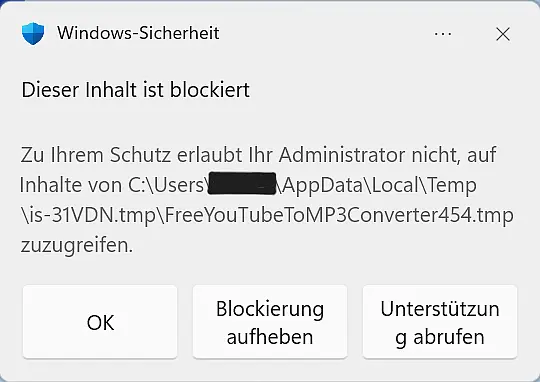
If you receive warnings or blocks from Microsoft Defender on your device, please contact the IT security officer immediately.
Please provide the following information:
- Date and time of the message
- Affected application or the file path displayed in the message
In addition, we ask that you also report any applications that suddenly malfunction or no longer work, especially in connection with the ongoing migration from Sophos to Microsoft Defender for Endpoint.
Your feedback helps us identify security risks early on and quickly resolve technical issues.
Thank you for your help!
What to do if viruses are found?
Disconnect the infected computer from the Internet and inform the URMZ service desk.
Further information can be found on our IT security pages.
TeamViewer (University Computer and Media Centre (URMZ) Remote Support)
TeamViewer on desktop PCs

After logging in to the PC (standard installation of the University Computer and Media Centre (URMZ)), you will find the TeamViewer icon in the notification area. If you click on the icon, a window will open.
When the University Computer and Media Centre (URMZ) support asks you, please name the one that appears in it - your ID. Then it will try to establish a connection from the University Computer and Media Centre (URMZ) to your PC.
At the point "Wait for authentication" please tell the support your password. It is always 8 characters long and consists of numbers and letters. The password is generated again and again after each session. This ensures that no one can automatically connect to your PC.
Now a successful connection/remote control should have been established.
A connection/remote control via PC is only possible within the university network (LAN).
TeamViewer on notebooks
In the start menu you will find a shortcut to the TeamViewer Quick Support tool (standard installation of the University Computer and Media Centre (URMZ)). You start this. When the support asks you, please name your ID. Then it will try to establish a connection.
At the point "Wait for authentication" please tell the support your password. This is always 8 characters long and consists of numbers and letters. The password is always regenerated after each session. This ensures that nobody can automatically connect to your PC.
Now a successful connection/remote control should have been established.
A connection/remote control via notebook is generally possible everywhere. Prerequisite is an existing Internet connection and that you are already logged in!
Mozilla Thunderbird (IMAP mail)
Mozilla Thunderbird is a free e-mail programme from the Mozilla project.
This programme is distributed to all users who do not use Microsoft Exchange and therefore Outlook.
Add university calendar
To add your university calendar in Thunderbird proceed as follows:
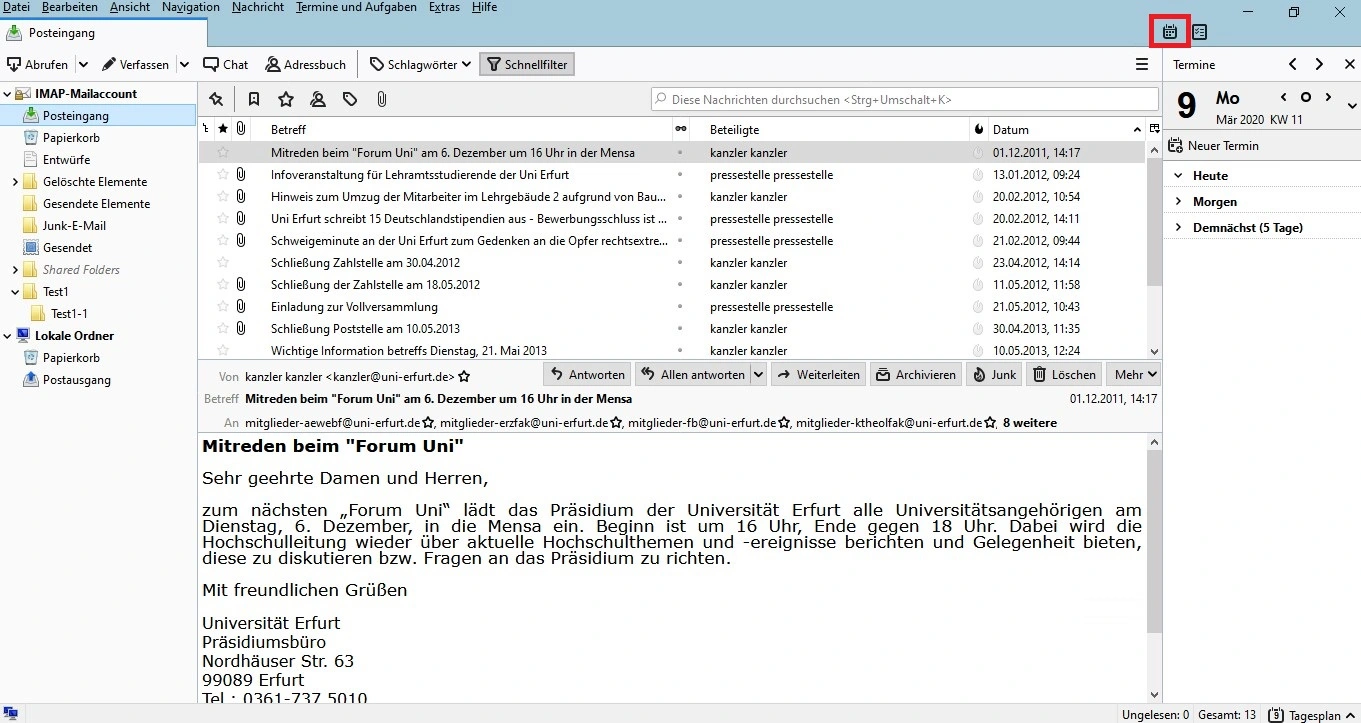
- Open the calendar tab via the calendar button in the upper right corner (image 1).
- In the calendar tab, right-click on "Private" in the left pane and click on "New Calendar" in the context menu that appears (Figure 2).
- In the following dialog windows, select in order:
- On the network
- CalDAV
- At "User name" enter your user name.
- At "Address" enter: imap.uni-erfurt.de/davserver/dav/home/%username%/calendar (%username% please replace with your username)
- Finally, at "Name" enter your full name.
- In the following window enter your password. The username should already be filled in.
Now you have integrated your university calendar! Under Calendar you will find 2 calendars. You can delete the calendar marked with Private (right click on "Private" and then on "Delete calendar" - confirm with "OK").
This way you can also integrate other, private calendars.

Backup and restore address book
Back up the address book data
- In Thunderbird, click Tools\Address Book.
- Then, in Address Book, click Tools\Export.
- Next, pick a location (H: is best), give the address book a name, and click Save.
Restore the address book data
- In Thunderbird, click on Tools\Address Book.
- In the address book, then click Tools\Import.
- Select Address Books and click Next.
- Next, click on "Text file" and click on "Next".
- Here you now search for your exported address book (*.ldif), select it and click "Open".
- Finally, a success message will appear stating that your address book has been successfully imported.
- Click on "Finish".
Now, in addition to the address books you already have, you have an additional address book with the name you assigned as the file name during the backup. You can continue to use this as an address book or drag and drop some/all contacts from the restored address book into already existing address books.
FileZilla (FTP programme for working with www2 web server)
With the FileZilla client, the user can connect to an FTP/SFTP server and then upload and download files. In addition, text files can be opened in the local text editor. FileZilla then monitors the open file and offers to upload the file if it changes.
Source: https: //de.wikipedia.org/wiki/FileZilla

![[Translate to English:] facebook icon](/fileadmin/SocialMediaIcons/iconfinder_06-facebook_white.svg)

![[Translate to English:] instagram icon](/fileadmin/SocialMediaIcons/iconfinder_38-instagram_white.svg)
![[Translate to English:] YouTube icon](/fileadmin/SocialMediaIcons/iconfinder_18-youtube_white.svg)
![[Translate to English:] xing icon](/fileadmin/SocialMediaIcons/iconfinder_xing_white.svg)
