1. Select the target language
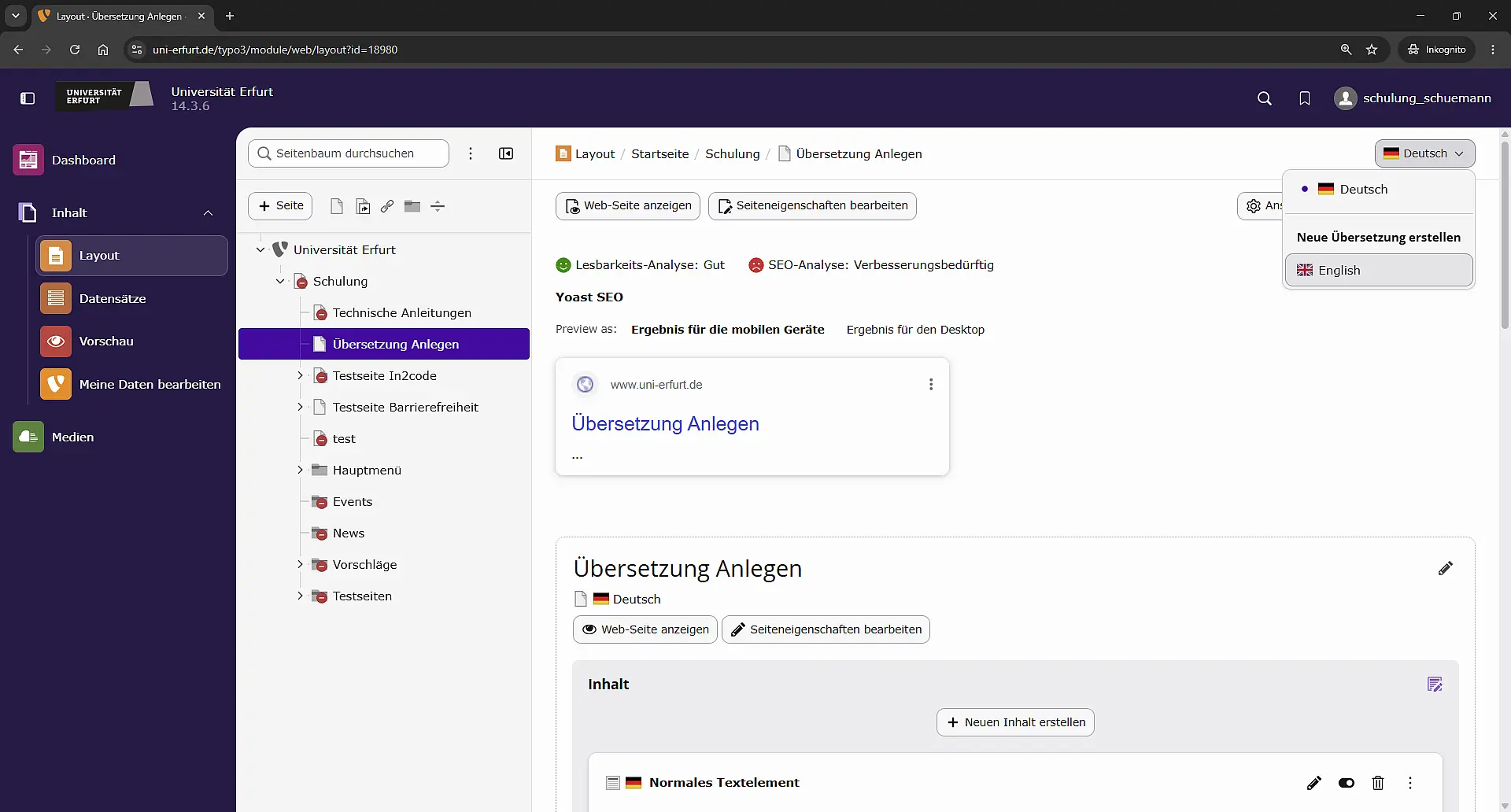
In the Layout module, open the page you wish to translate.
Then open the language selector in the top right-hand corner. Under ‘Create new translation’, select the desired target language, i.e. English.
2. Select content for translation
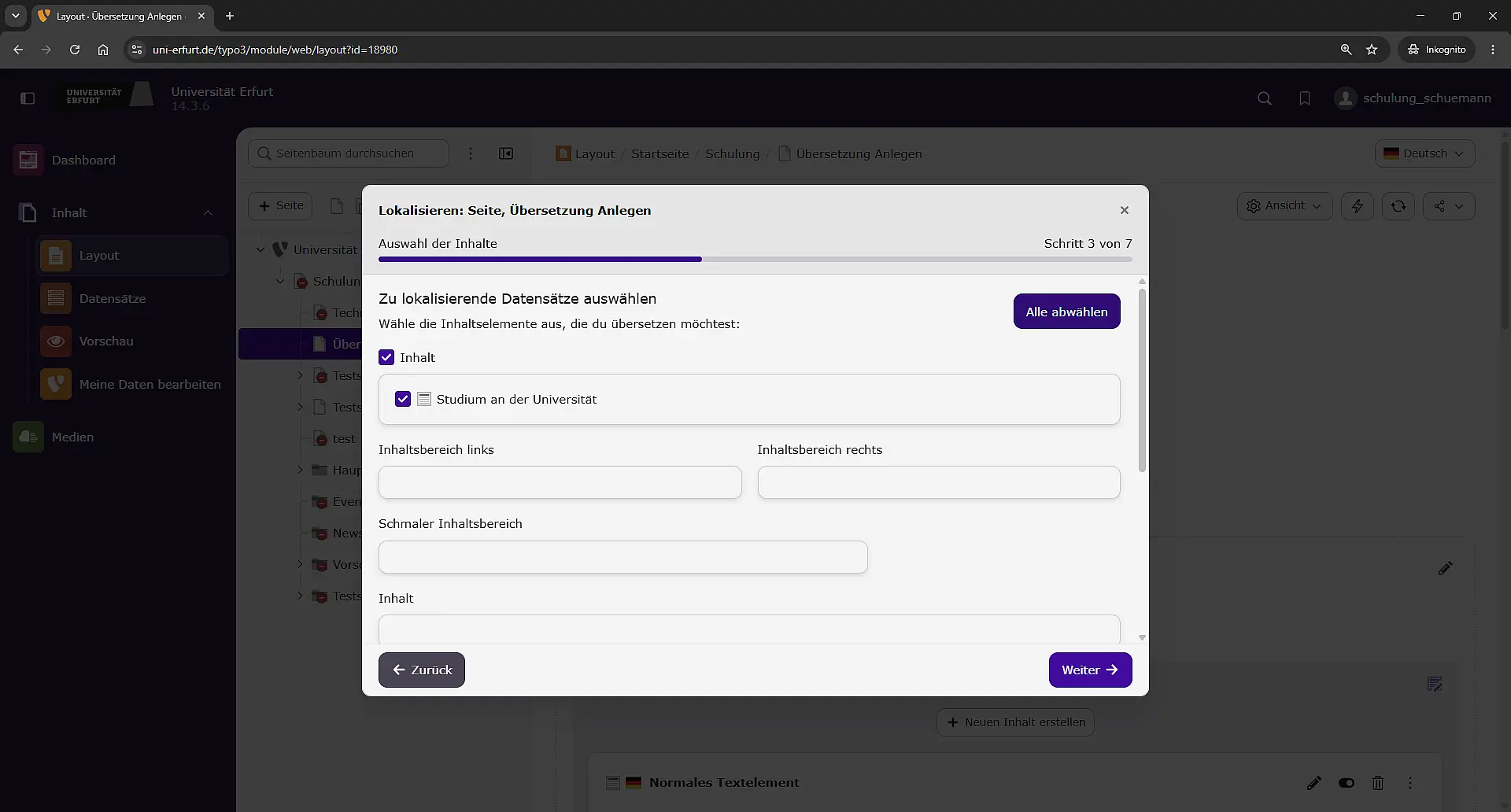
TYPO3 opens the dialogue box for localising the page.
Under ‘Select records to localise’, you can specify which content elements are to be translated. By default, the existing content elements may be selected.
Check your selection and click Next.
3. Select ‘Translate’ mode
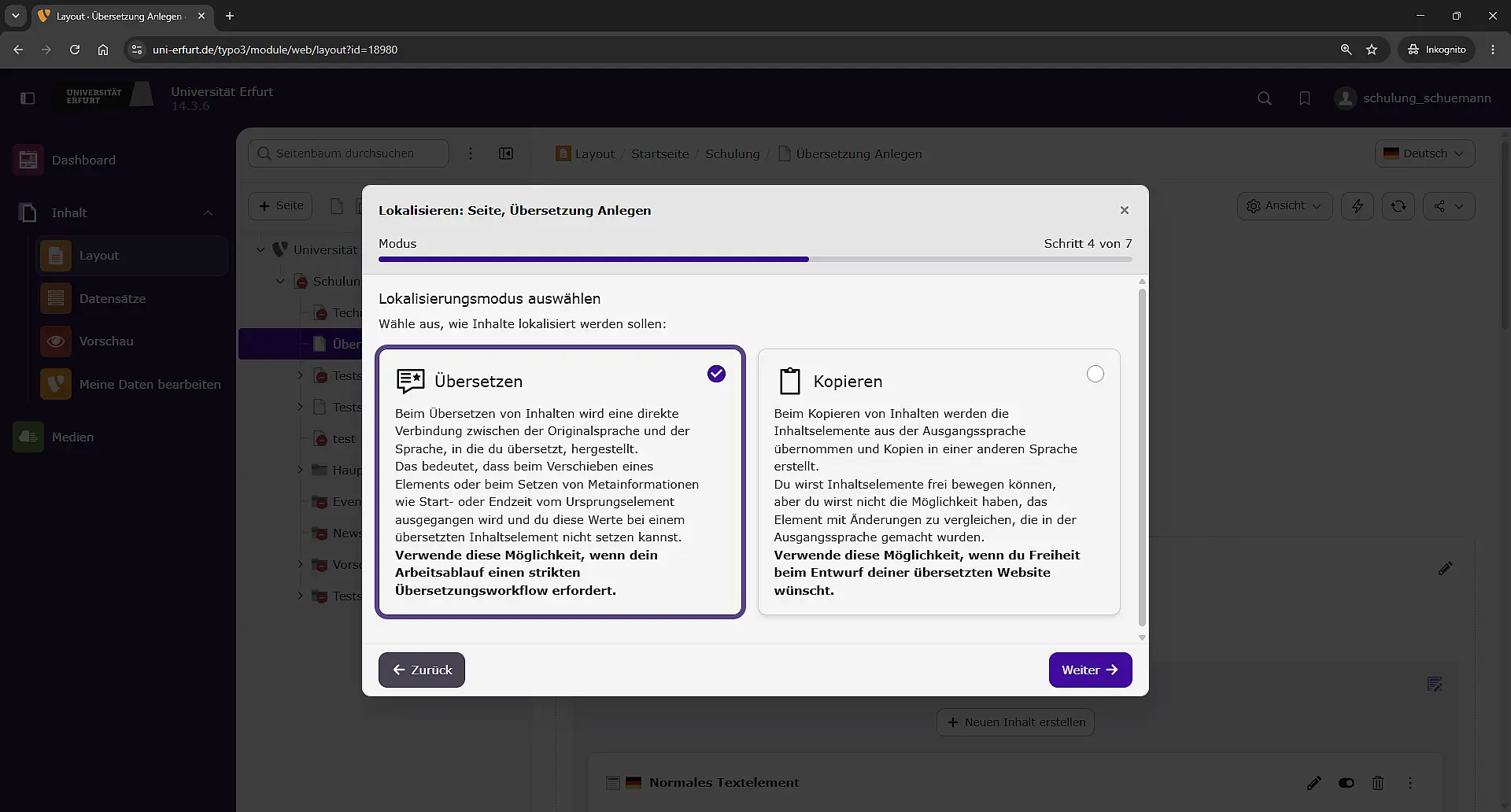
Select ‘Translate’ as the localisation mode.
In this mode, the translated version remains linked to the German source language record. This allows the original and the translation to be uniquely matched in TYPO3.
Do not use the ‘Copy’ option for this workflow.
Then click Next.
4. Select DeepL as your translation service
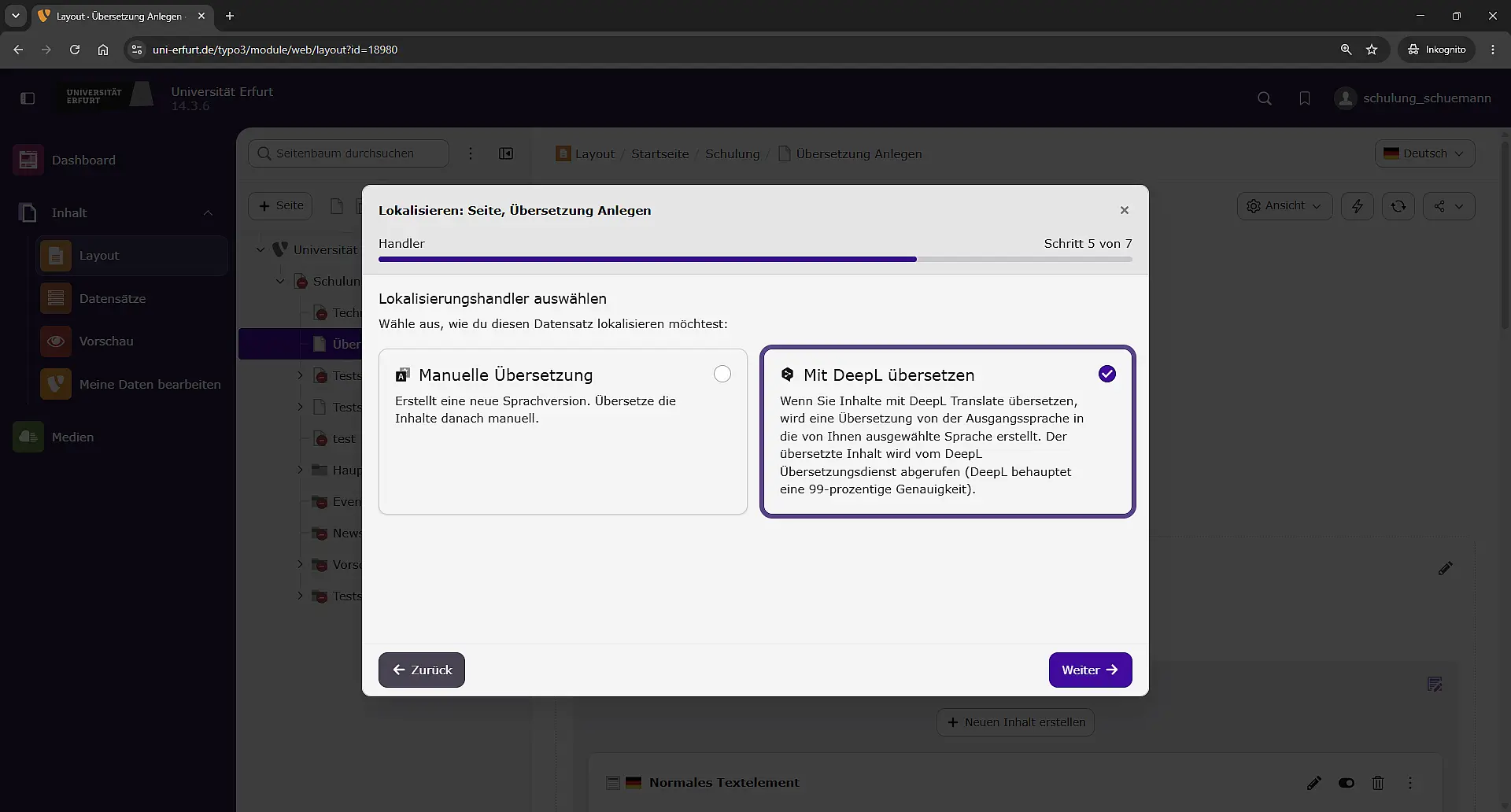
In the next step, select the localisation handler.
Tick the ‘Translate with DeepL’ box and click ‘Next’.
TYPO3 passes the selected content to DeepL and uses it to create a new language version in the previously selected target language.
5. Check the translation and publish it

Once the translation is complete, the German and translated content can be displayed side by side for comparison.
The translated page is in linked mode. The content elements of the new language version therefore remain linked to their respective original German elements.
After the examination, enable the visibility of the relevant content elements using the visibility icon on the content element.
6. Publish the translated page
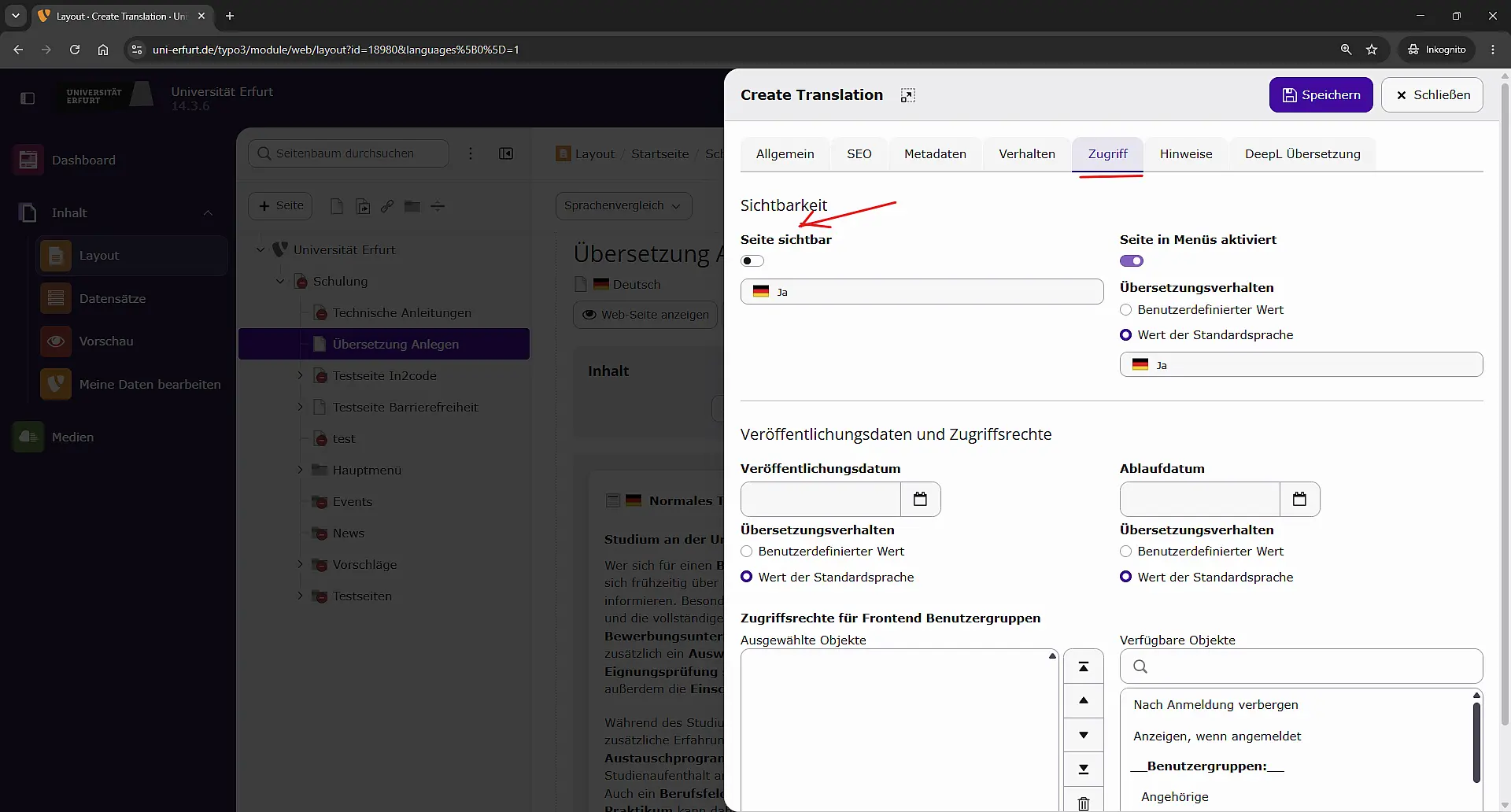
To ensure that the translated page is accessible on the website, the page itself must also be set to visible.
On the translated page, open ‘Edit page properties’ and go to the ‘Access’ tab.
There, tick the ‘Page visible’ box and then click ‘Save’.
Translate new content elements on pages that have already been translated
If a new content element is added later to a page that has already been translated in the German language version, there is no need to recreate the language version of the page.
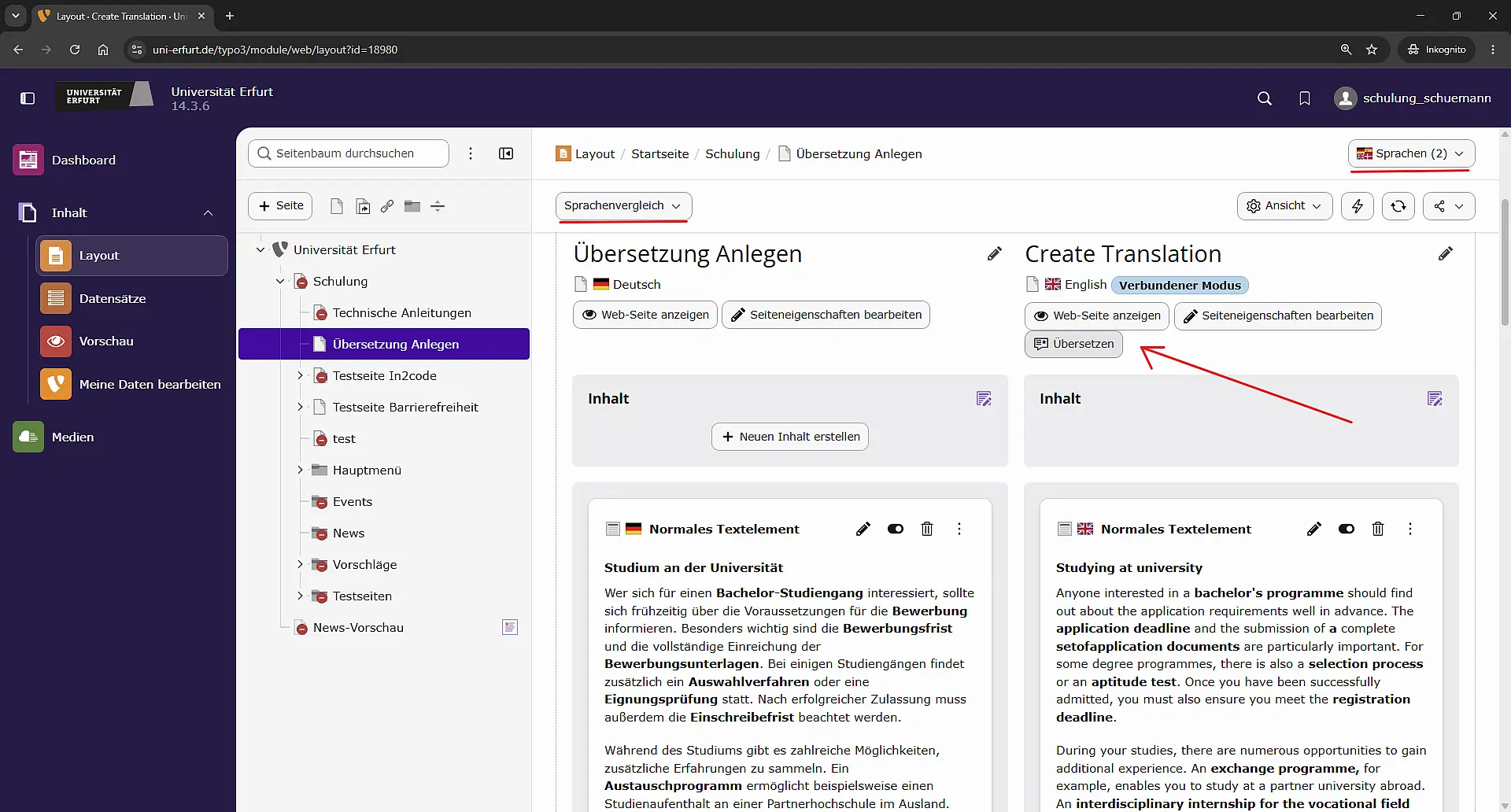
Open the page in the Layout module and select the language comparison. In the target language column, ‘English’, click on ‘Translate’.
The same translation dialogue box will then open as when creating a translation for the first time.
Translate news and events
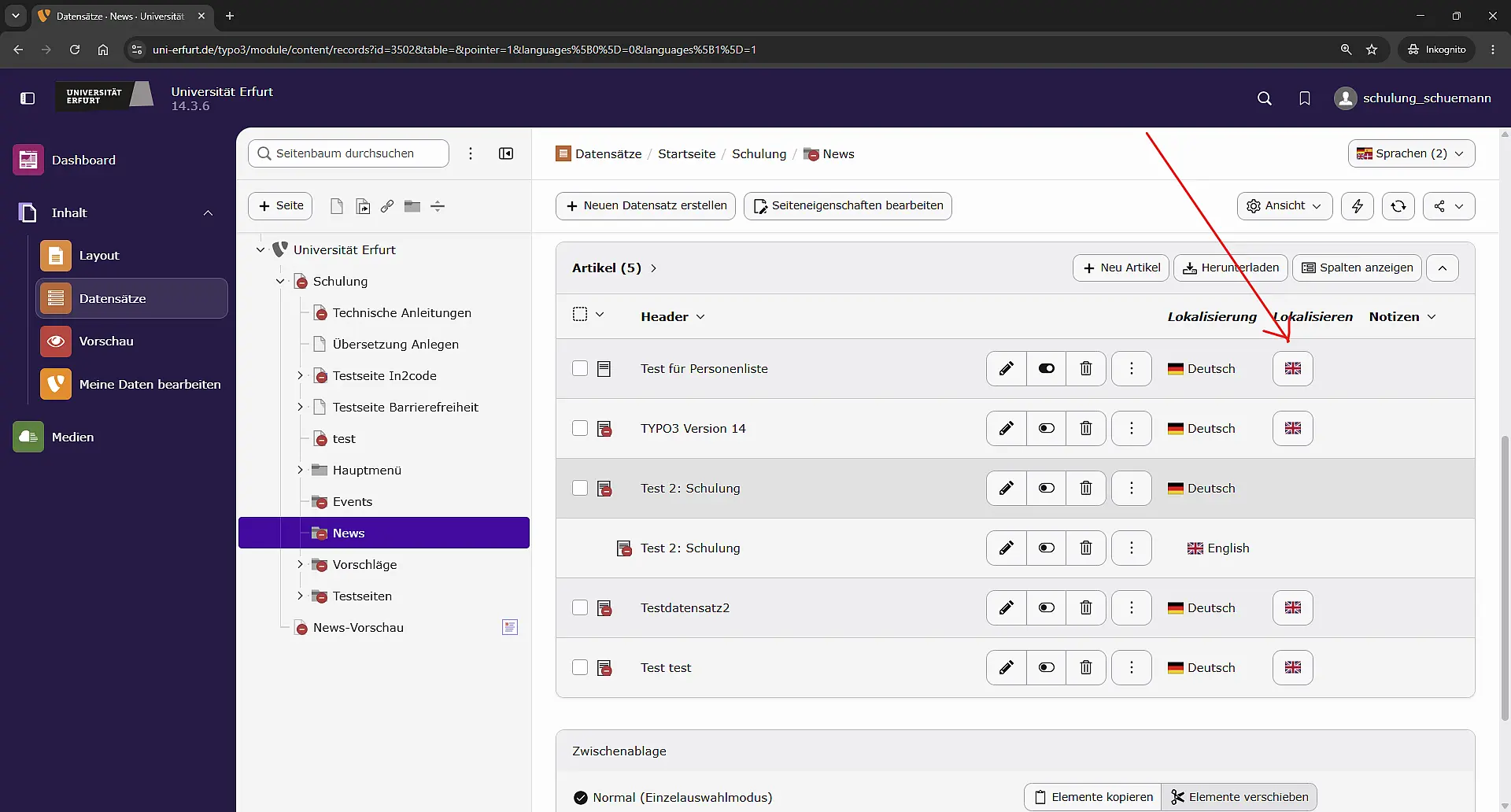
News and event records are localised in the Records module.
Select the required record and click on the British flag in the Localise column.
This will open the same translation wizard as described above. Carry out the translation there using DeepL and then check the translated record before publishing it.

![[Translate to English:] facebook icon](/fileadmin/SocialMediaIcons/iconfinder_06-facebook_white.svg)

![[Translate to English:] instagram icon](/fileadmin/SocialMediaIcons/iconfinder_38-instagram_white.svg)
![[Translate to English:] YouTube icon](/fileadmin/SocialMediaIcons/iconfinder_18-youtube_white.svg)
![[Translate to English:] xing icon](/fileadmin/SocialMediaIcons/iconfinder_xing_white.svg)
